

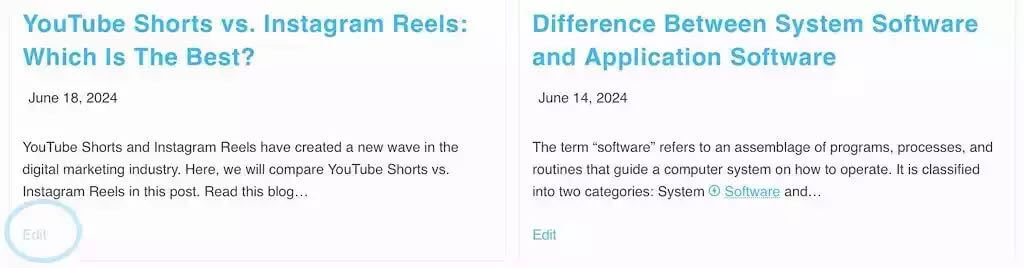
I didn’t open my website expecting a problem. I was simply checking a page the way any site owner does from time to time, when something immediately felt off. Right there on the page — not hidden, not subtle — was an Edit button. Why was WordPress edit button showing publicly? Not inside the WordPress admin, not after logging in, but clearly visible on the public page.
That’s when it hit me: my WordPress edit button was showing publicly, and the sense of panic set in before I could even fully process what I was seeing. If you’ve ever seen that happen, you know how unsettling it feels. Your mind immediately jumps to the worst conclusions. You start questioning your site’s security, your setup, and even whether visitors or search engines can see something they shouldn’t.
This post documents exactly what I did, step by step, before finding the only fix that actually made the problem impossible to return.
WordPress Edit Button Showing Publicly: When I First Noticed the Problem
The First Assumption: “This Must Be a Login Issue”
My first reaction was simple. I logged out of WordPress.
The edit button was still there.
That immediately ruled out the most obvious explanation. This wasn’t just something visible to me because I was logged in. It looked like a real public issue.
To be absolutely sure, I opened a new Incognito window.
Why Incognito Mode Didn’t Make the Problem Go Away
Incognito mode is often treated like a magic test. If something appears there, people assume it’s truly public.
So when the WordPress edit button was still visible in Incognito mode, my concern doubled. But this was also the moment I learned something important:
Incognito mode does not bypass server caching.
It only ignores browser cookies. If a server has already saved a version of a page, Incognito will happily show that cached version — even if it contains things that shouldn’t be public.
This realization shifted my focus away from browsers and toward caching.
Discovering That Caching Was the Real Problem
My site was optimized for speed. I was using WP Rocket, and my hosting plan included server-level caching. Pages loaded instantly, which usually feels like a win.
But caching works by saving a snapshot of a page and serving it repeatedly. If that snapshot is taken at the wrong moment, the wrong things can get saved.
At some point, my site had cached a page while I was logged in, complete with admin elements.
From that moment on, that cached version was treated as “public.”
Clearing Cache Helped — But Only Briefly
I cleared all caches.
The edit button disappeared.
At first, that felt like success. But later, it came back. That’s when I realized I hadn’t solved anything. I had only reset the symptom.
If the cache rebuilt itself under the same conditions, the problem would return. And that meant I needed to understand how the cache was being rebuilt.
WordPress Edit Button Showing Publicly: How I Solved the Real Problem
What I Changed in WP Rocket (Important, But Not Final)
The next place I looked was WP Rocket’s Preload feature.
WP Rocket doesn’t just cache pages when visitors arrive. It can also preload pages automatically. This is great for performance, but dangerous if preload runs while you’re logged in.
I discovered that the preload bot can capture:
- The admin bar
- Edit links
- “Edit with Elementor” buttons
Once captured, those elements are stored as part of the cached HTML.
So I made two deliberate changes:
- I disabled the preload bot
- I kept sitemap-based preloading enabled, because it runs safely without user context
This reduced the risk, but it still depended on WP Rocket behaving perfectly.
I wanted something more reliable.
Preventing Logged-In Pages From Ever Being Cached
Next, I addressed logged-in users directly.
WordPress creates a special cookie for logged-in users. Every one of those cookies starts with the same prefix.
Inside WP Rocket, there’s a setting called Never Cache Cookies. This is where you tell the cache what it must never store.
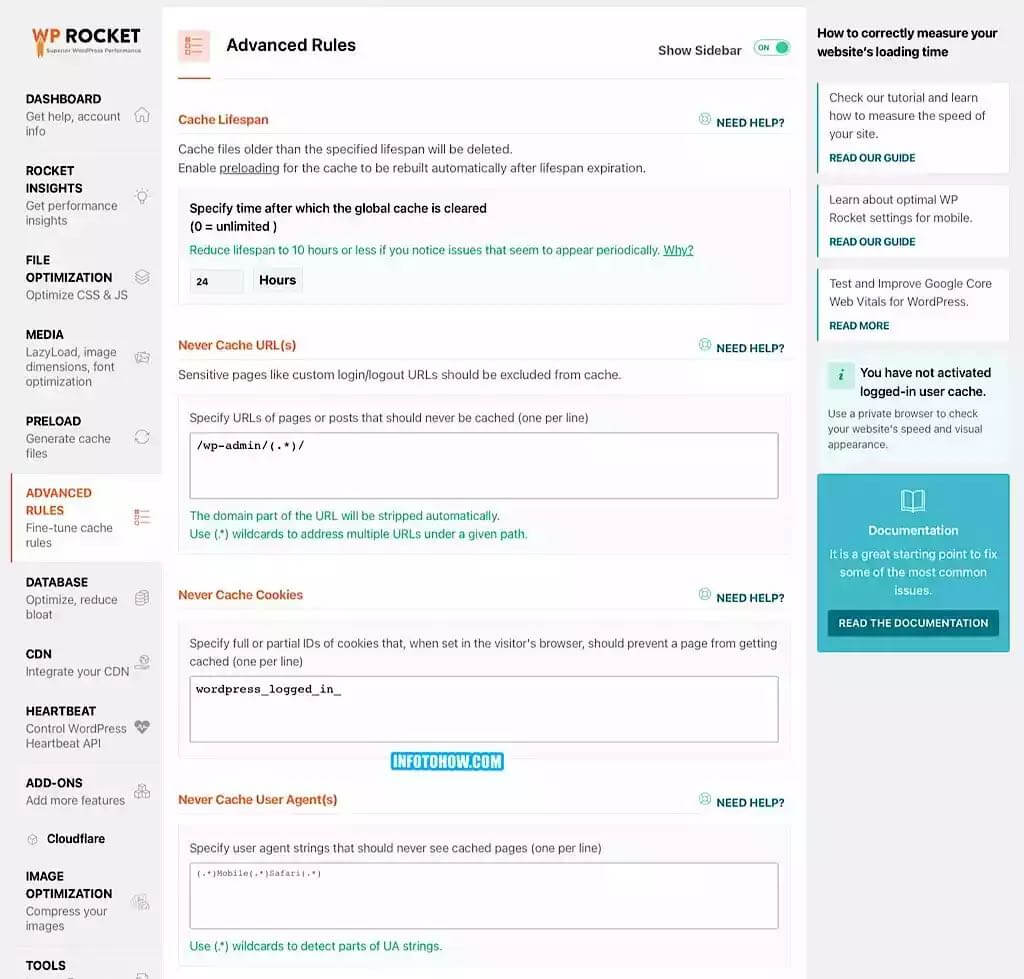
I added exactly this, and nothing else:
wordpress_logged_in_
This ensured that any page generated while a user is logged in would never be cached again.
This was a strong safety layer — but it still wasn’t enough for peace of mind.
Why? Because it still relied on cache rules.
Why I Checked robots.txt (And Why It Didn’t Fix Anything)
At one point, I even reviewed my robots.txt file. Not because robots.txt controls caching — it doesn’t — but because when something feels exposed, you check everything.
My file looked like this:
User-Agent: *
Disallow: /wp-admin/
Allow: /wp-admin/admin-ajax.php
This was already correct. Search engines were never the issue. The problem was entirely on the frontend and entirely about rendering.
That’s when I finally asked the right question.
The Question That Changed Everything
Instead of asking,
“How do I stop cache from saving this?”
I asked,
“Why am I letting admin elements appear on the public site at all?”
If the Edit button never appears on the frontend, then:
- It can’t be cached
- It can’t leak
- It can’t confuse visitors
- It can’t reappear later
That realization led to the only fix that truly mattered.
The Permanent Solution (This Is the One That Ends the Problem)
The real fix wasn’t in WP Rocket.
It was in WordPress itself.
I added a single line of code that tells WordPress to never display the admin bar on the frontend.

Here is the exact code:
add_filter(‘show_admin_bar’, ‘__return_false’);
Where to add this (Exactly)
You must add this to your active theme’s functions.php file.
The path looks like this:
/wp-content/themes/your-active-theme/functions.php
You can add it in one of two ways:
- Using Appearance → Theme File Editor in WordPress
- Using your hosting file manager (recommended)
Paste the code at the very bottom of the file, without removing anything else.
Do not add extra tags. Do not place it above <?php.
Why This Fix Works When Everything Else Can Fail
This line prevents WordPress from outputting the admin bar on the frontend entirely.
That means:
- No Edit button
- No admin UI
- Nothing for cache to save
Even if:
- WP Rocket preload runs at the wrong time
- Hosting cache misbehaves
- You forget to clear cache
The admin interface simply does not exist on the public side.
And what doesn’t exist can’t break.
The Final Cleanup (Only Once)
After adding the code, I did one final cleanup:
- Cleared WP Rocket cache
- Cleared hosting cache
- Logged out completely
- Tested in Incognito
- Tested on a different network
The edit button never came back.
Not once.
Final Thoughts
If your WordPress edit button is showing publicly, don’t assume the worst.
You’re not hacked.
You didn’t break WordPress.
You ran into a rare but very real caching edge case.
Temporary fixes help, but only one solution makes the issue impossible.
Remove admin tools from the frontend entirely.
Once I did that, the problem didn’t just go away —
it became something I never had to think about again.
And that’s exactly how a website should feel.
Frequently Asked Questions
Is my WordPress site hacked if the edit button is showing publicly?
Why does the WordPress edit button show even in Incognito mode?
Can visitors actually edit my site when they see the edit button?
Does clearing cache permanently fix the WordPress edit button issue?
Is WP Rocket responsible for the edit button showing publicly?
Do I need to change robots.txt to fix this problem?
What is the permanent solution to stop the edit button from appearing publicly?
Will disabling the admin bar affect my ability to edit the site?
Is this fix safe for SEO?
Also Read: How to Format a Spiral-Bound Booklet for Maximum Usability?