
Were you trying to play Roblox and ran into Error Code 264? Worry not because in this article. We have included all the solutions you can implement to fix the Roblox error code 264. The error message shows:
“Roblox Error Code 264: Same Account Launched game from Different Device. Reconnect if you prefer to use this device”
Also, we will discuss in detail what the error means and why you see it on your computer. Check out our step-by-step guide to fix this at home without outside help.
Table of contents
What Is The Roblox Error Code 264?
The error means you are logged on to different sessions on different devices. But the error appears when you log in with the same account where another session is already active. This means that you are playing the same account on several devices. As the game doesn’t allow this, send the error code 264 to the user.
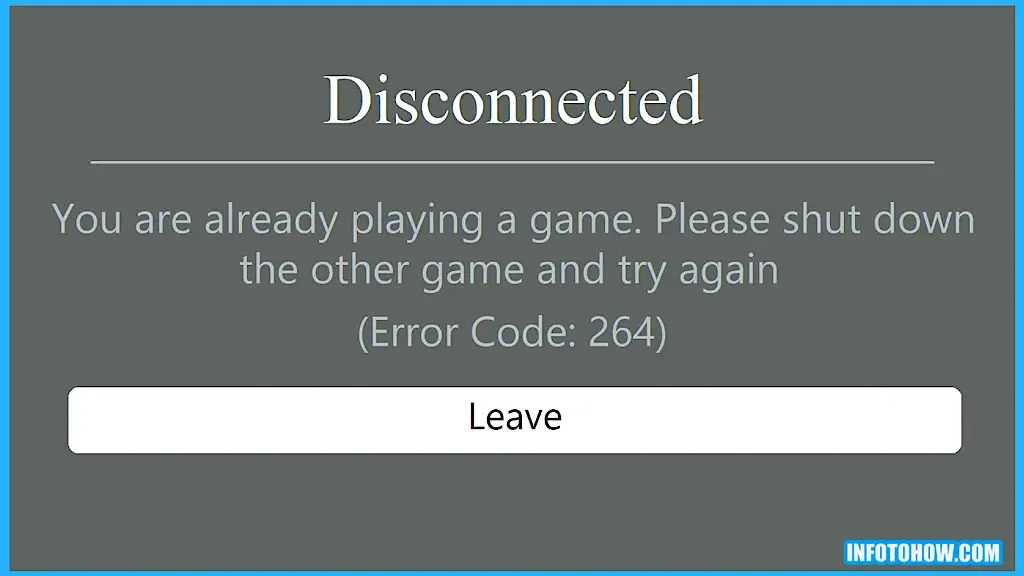
An obvious fix to this would be to log out of other devices. But in most cases, the error is triggered due to different reasons. Some of these have been discussed below.
Why Are You Getting The Roblox Error Code 264?
If you are getting the Roblox Error Code 264, the following reasons you should be looking out for.
- Corrupt Cache: The game cache may be corrupted. The game maintains the cache so that it can load more efficiently. This is because the cache contains important assets that allow it to load fast.
- Other Devices: When multiple devices are connected, the account might be unable to play. So, logging out of other devices can sometimes fix the error.
- Corrupted Browser Cache: The browser contains a copy of the cache, and a corrupted cache can trigger the error. Like the game, the browser also has important resources in the cache that allow the game to load swiftly. So, regenerating the browser’s cache can sometimes help fix the Roblox Error Code 264.
- Router Configuration Corrupted: If the router can’t properly connect to the internet, you will get the Roblox Error Code 264. Thus, we suggest you try clearing out the router’s DNS configurations. You can do this by restarting it completely.
- Proxied Connection: The connection coming from your computer might be proxied from another connection. Thus, we suggest you try to turn off the proxy and check if that fixes the issue.
You can finally start implementing the fixes now that you know why it occurs.
7 Solutions on How To Fix Roblox Error Code 264
Solution 1: Log out of Other Devices
As the error suggests, we will first try to log out of other devices. You can change some settings from your account’s security panel. To do that, follow the steps below.
- Launch the Roblox launcher from your computer and click on the “Three Dots” at the top right side of your panel.
- Now, Select the “Settings” option and click “Security“.
- From here, select “Log out of All other Sessions” and then select the “Logout” button to confirm.
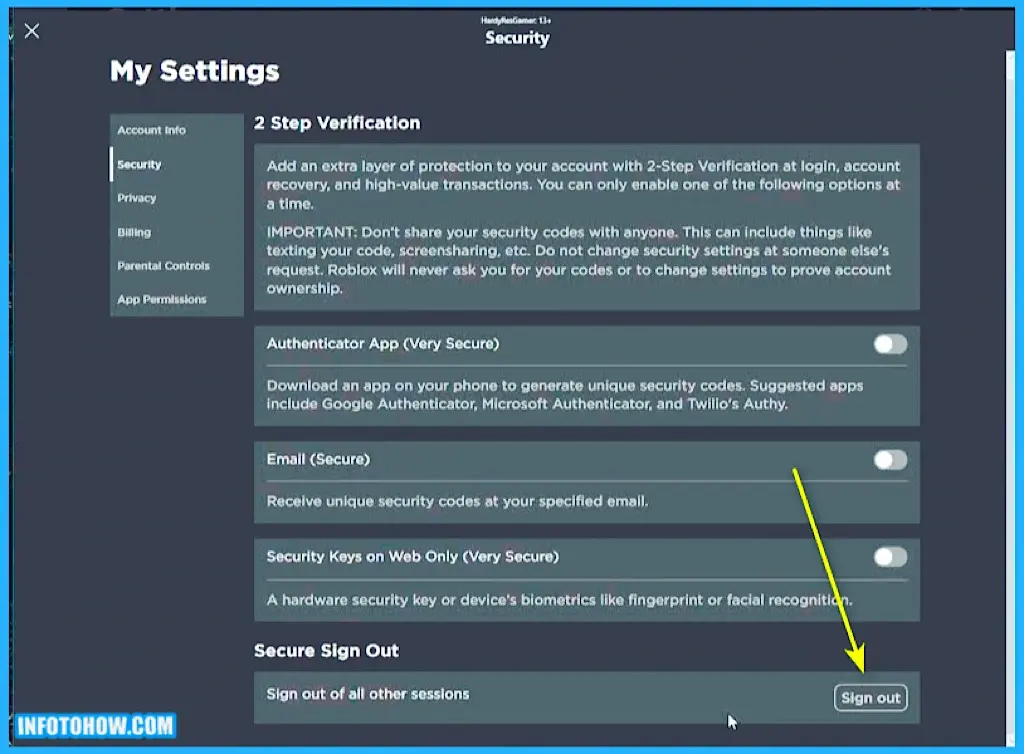
- This way, you can log out of all other devices.
- Check to see if this fixes the Roblox Error Code 264 issue.
Solution 2: Restart your Router
As your browser contains important information related to DNS queries. It can sometimes affect the connection. This happens when these DNS configurations are corrupt. Thus, you can try to perform a complete restart of the router to fix the issue. For that:
- Unplug the power cable from the back of the router.
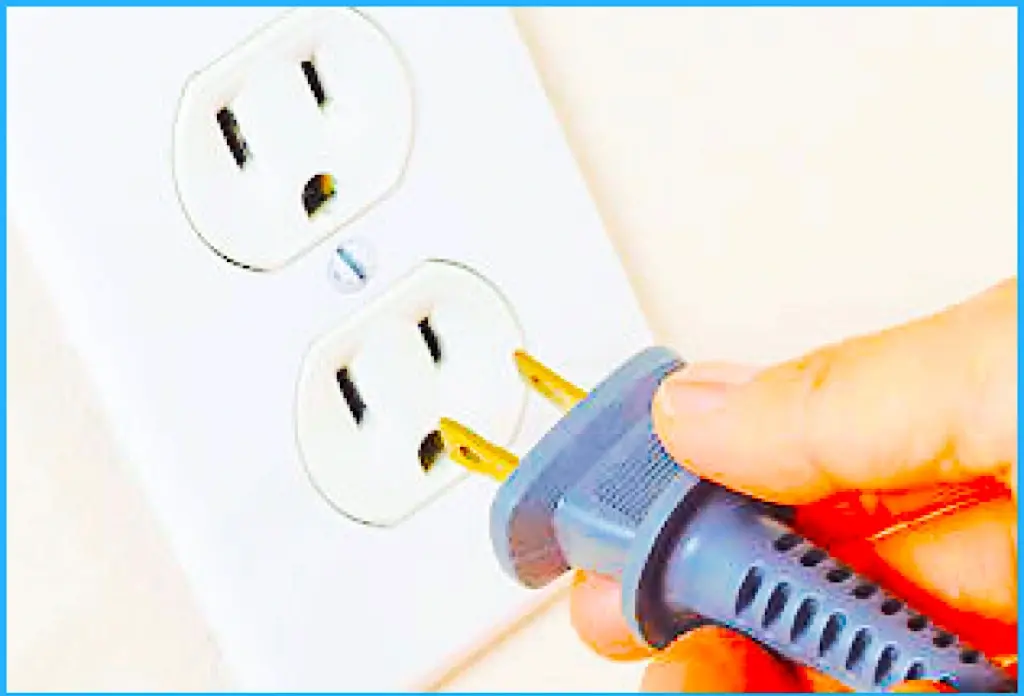
- Press and hold the power button on the router for at least 10 seconds.
- Now, plug the power cable back in and turn the router on.
- Check to see if there are no error messages.
Solution 3: Turn off Proxied Connection
Sometimes, your connection might be coming from a proxied server. This can be a hurdle in playing the game, as the game servers might detect suspicious activity on your end. Thus, we suggest that you try to turn off your proxied connection. For that:
- Press “Windows + R” to start Run.
- Type “inetcpl.cpl” to start the internet control panel.

- Click the “Connections” button in the panel and select “Lan Settings“.
- Now, try to uncheck the “Use a Proxy Server for your LAN” option.
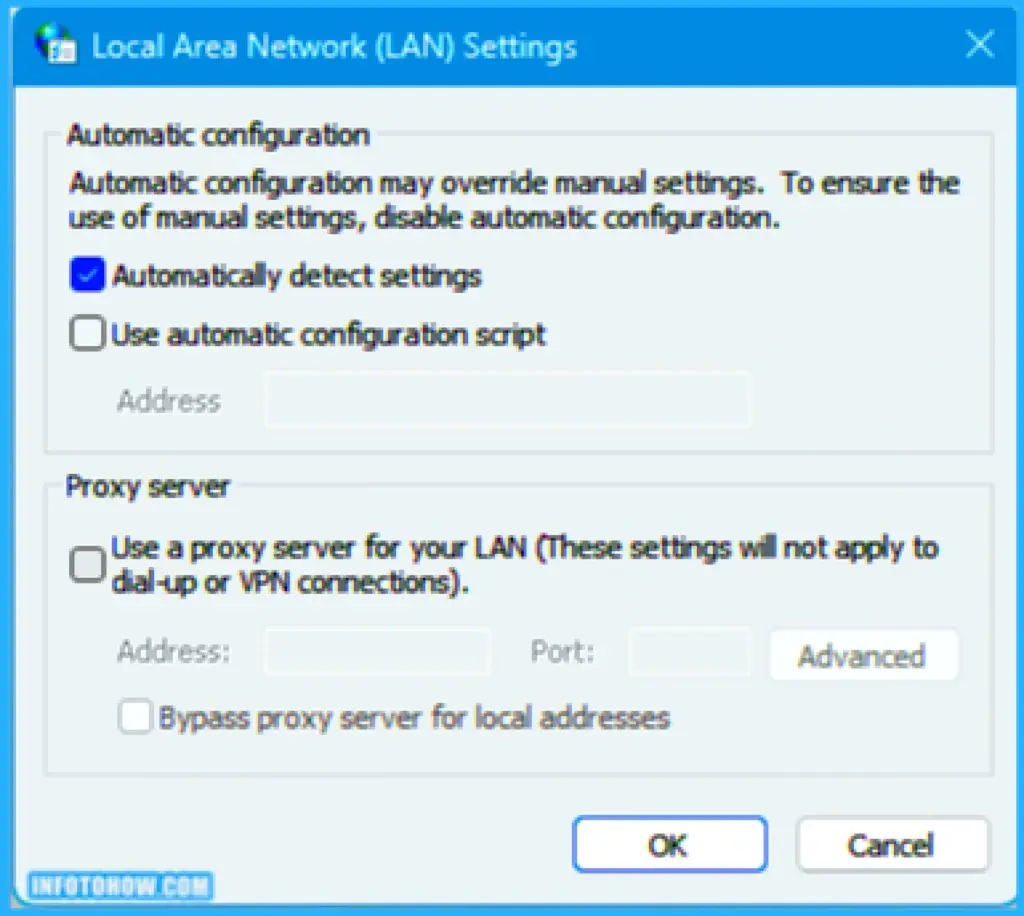
- Try to connect to your game and check to see if this fixes the Roblox Error Code 264 iPad issue.
Solution 4: Clear Game Cache
The game may have acquired a corrupt cache. A cache helps to maintain important assets locally for fast loading. We suggest you regenerate the cache by deleting the previous one to fix this. To do that:
- Press “CTRL + ALT + DEL” from your keyboard and select the “Task Manager” option.
- Now, search for “Roblox” or any of its iterations in the task manager and click on it to select it.
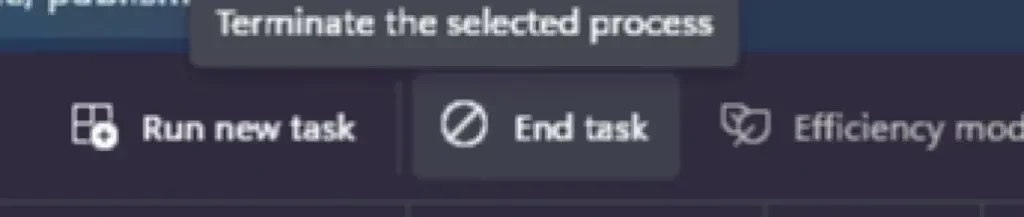
- After that, select the “End Task” button to completely clear out the game from the running queue.
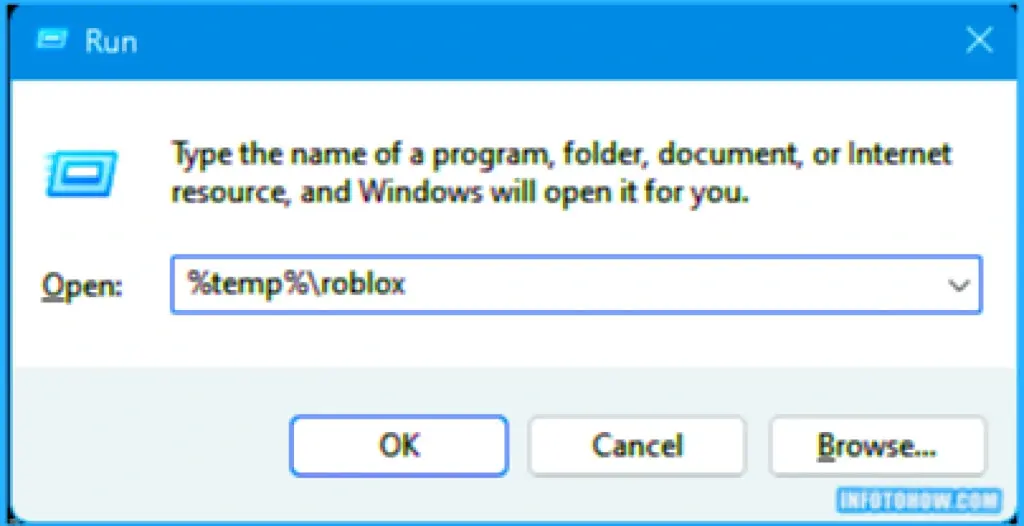
- Now, press the “Windows + R” button to start Run.
- Here, type in “%temp%\roblox” and press “Enter“.
- Select all files by pressing “CTRL + A” in this folder. Then press the “Shift + Delete” option to completely clear all the files.
- Now, Log out of your launcher and log back in.
- Start the game and check whether the Roblox Error Code 264 Mac has gone.
Solution 5: Clear Browser Cache
Like the game cache, a local copy of important assets is also maintained by your browser. You can face issues while launching the game if this copy is corrupt. Thus, we suggest that you also clear the browser cache. This step may vary between browsers, so we recommend you follow your relevant steps.
Clear Cache in Chrome:
- Launch Chrome and press the “Three Dots” on the top right side.
- Select the “Settings” option and then the “Privacy and Security” option from the left side.
- Clear your browser’s history by choosing the “Clear Browsing Data” option.
- Select “All Time” from the Time range in the next window.

- Select all the check marks and the “Clear Data” option.
- This will clear out your browser’s history.
- Check to see if it fixes the Roblox Error Code 264.
Clear Cache in Edge:
- Launch Microsoft Edge on your device.
- Press the “Ctrl + H” buttons from your keyboard.
- Now, select the “Three Dots” on the open panel.
- Select the “Clear Browsing Data” option.
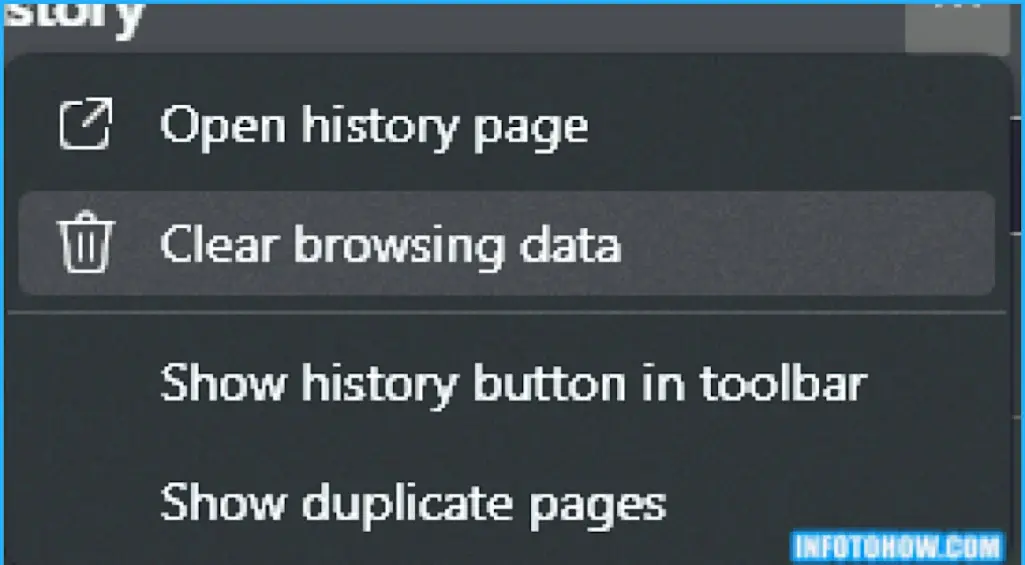
- Select “All Time” from the time range and then select all the options.
- Then, select the “Clear Data” button to clear out the history.
- Check to see if this fixes the Roblox Error Code 264 issue.
Solution 6: Change DNS Settings
Some DNS settings might be active on your router, preventing a connection with the Roblox servers. Thus, we suggest changing these settings to fix the error completely. For that, you can use the following steps.
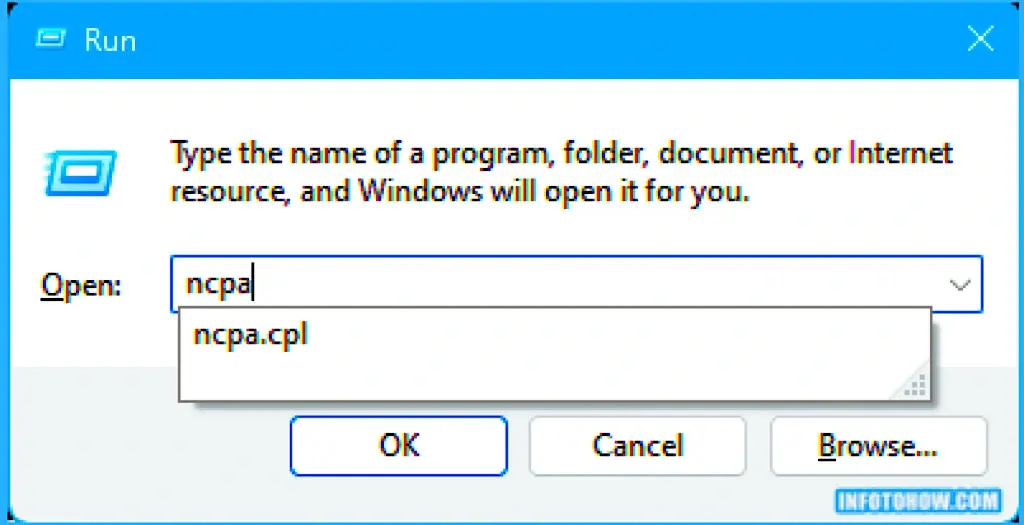
- Press “Windows + R” to start the Run prompt.
- From there, type in “ncpa.cpl” and press “Enter” to start the network control panel.
- Select the “Internet connection” you use and right-click on it.
- Click on the “Properties” option to load all the network properties on the screen.
- Select “Internet Protocol Version 4 (TCP/IPV4)” from the next window and double-click on it.
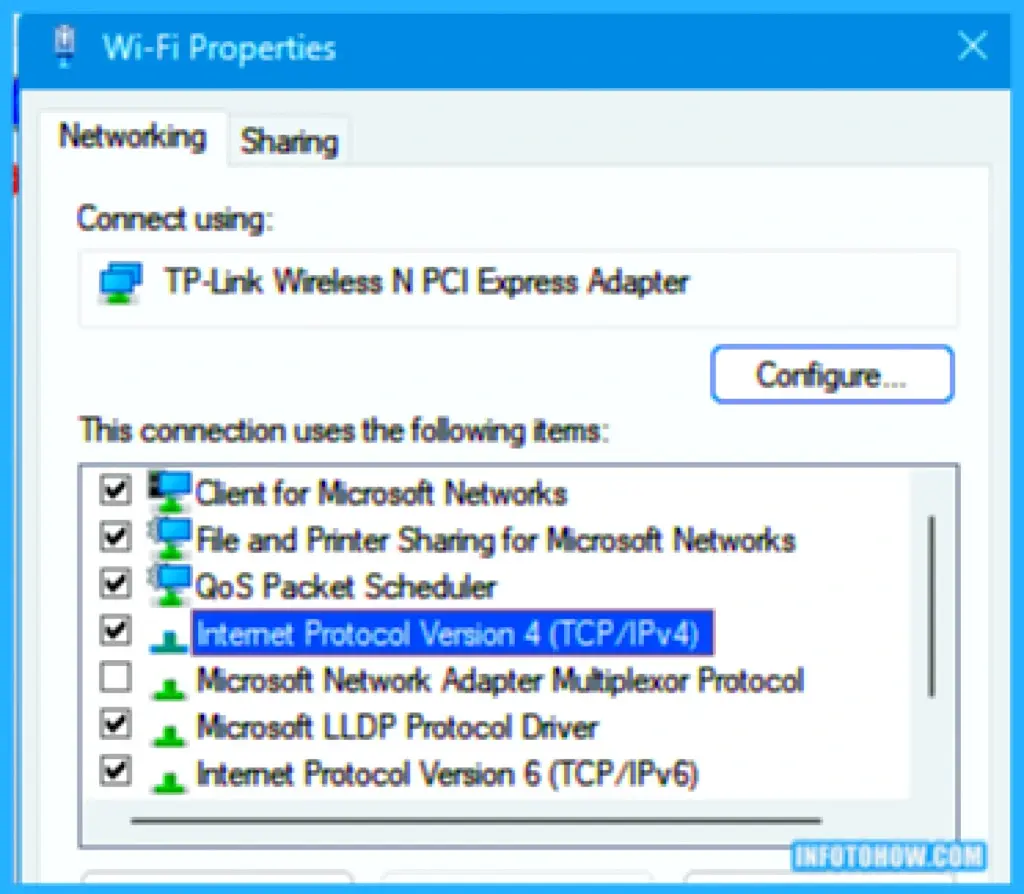
- Now, check the “Use the following DNS addresses” option and then type “8.8.8.8” and “8.8.4.4” in the two fields.
- After changing your DNS address, check whether this solution has fixed the Roblox Error Code 264.
Solution 7: Reset TCP/IP Settings
There are certain TCP/IP settings that, if misconfigured, can cause this error. These settings also build a spool of data configurations your internet connection uses. Thus, you must try resetting them by executing some commands in the command prompt. For that:
- Open the Run Prompt by pressing “Windows + R“.
- Type in “cmd” and run it. You can press “Shift + CTRL + Enter” to begin with admin mode.
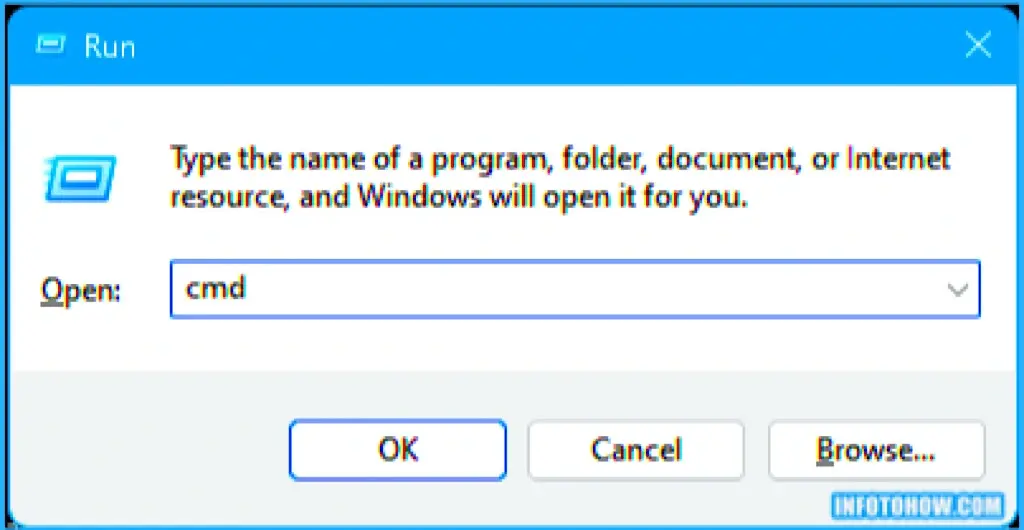
- Now, type in the following commands one by one. Also, press “Enter” after each to execute them.
- netsh winsock reset
- netsh int ip reset
- ipconfig /release
- ipconfig /flushdns
- ipconfig /renew
- After executing the commands, check whether the Roblox Error Code 264 has fixed itself.
FAQ:
What Is The Roblox Error Code 264?
As mentioned, the error means that your account’s session token wasn’t approved, which shows this error. This is due to an authentication issue; the error indicates that.
Why Are You Getting The Roblox Error Code 264?
You are getting this error because there might be a problem with your account being logged into too many devices. There are other reasons this error can be seen, such as internet or game cache issues.
Conclusion:
While the Roblox Error Code 264 can be quite frustrating, it is important to remember that you can fix it. The issue is mostly related to an error with the authentication of your session. This can be due to different reasons. As discussed, fixing it involves mostly fiddling with your internet connection. If you are still facing this error, try to contact Roblox support.