
iPad touch not working properly — apps won’t open, the dock freezes, or tapping icons does nothing — you’re not alone. Many iPad users face this strange problem where the screen responds to swipes and gestures but ignores app taps completely. It’s easy to panic and think something is wrong with the touchscreen or that your device might be hacked. But don’t worry — this isn’t a hardware issue. In this guide, you’ll learn exactly why this happens and how to fix your iPad in just a few seconds.
Table of Contents
Why Your iPad Touch Works but Apps Don’t Open?
If your iPad responds to swipes, Control Center, and gestures — but apps refuse to open or the dock feels stuck — you’re not alone.
Many iPad Pro and iPad Air users experience this weird issue, especially after iPadOS updates.
It’s frustrating because everything looks normal — Wi-Fi, battery, and gestures all respond — but tapping any app does nothing.
The good news? Your touchscreen isn’t broken, and your iPad isn’t hacked. The real culprit is a software glitch, often linked to Apple’s multitasking feature, Stage Manager.
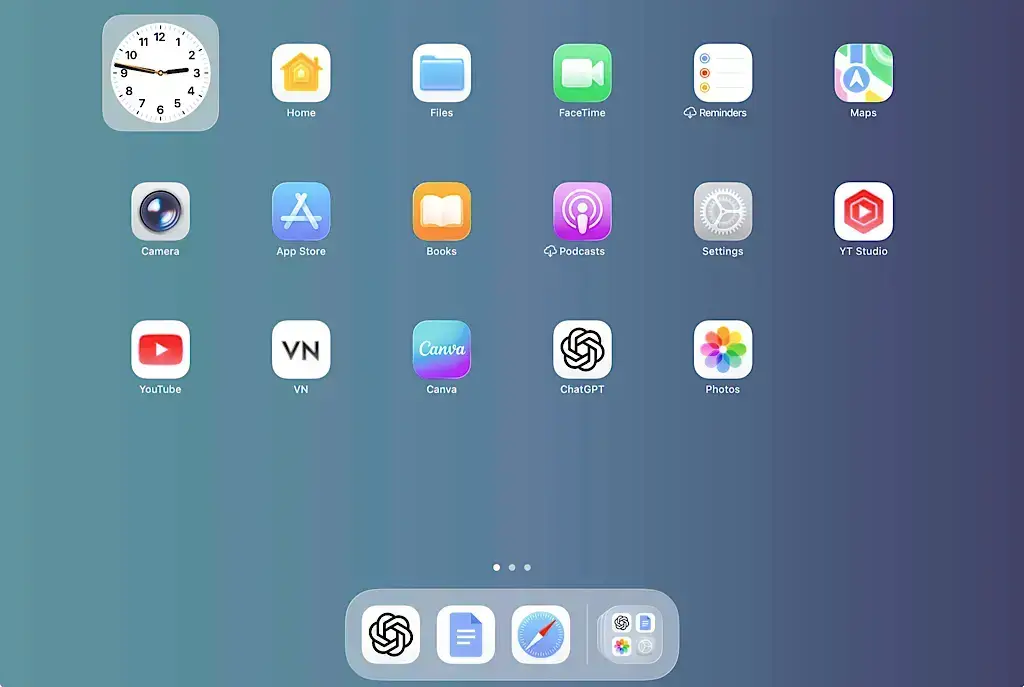
Common Causes of iPad Dock and Touch Problems:
1. iPadOS Interface Freeze
The iPad’s SpringBoard handles your icons and dock. When it crashes, your device seems alive but can’t open anything.
2. Accessibility or Shared User Mode
If Guided Access, Assistive Access, or Shared iPad is turned on, you may be locked into limited functionality without realizing it.
3. Low Storage or System Overload
If your storage is nearly full, iPadOS struggles to run processes — leading to slow or frozen responses.
4. Stage Manager Multitasking Bug
Introduced in iPadOS 16, Stage Manager allows desktop-style multitasking. But sometimes, it causes the dock to freeze, leaving users unable to open apps.
How Stage Manager Works — and Why It Sometimes Freezes?
Stage Manager lets you open multiple apps in floating windows — just like on a computer. You can resize, stack, and drag apps around while keeping others in view.
However, this new power comes with complexity:
- It uses more memory than traditional single-task mode.
- It continuously manages background app layouts.
- It can conflict with certain accessibility settings or widgets.
When memory pressure or system lag occurs, Stage Manager can temporarily lock the SpringBoard process — freezing the dock or home icons.
That’s why users often find everything else responsive (Control Center, swipes, gestures), but apps simply won’t open.
It’s a software coordination problem, not a hardware or hacking issue.
Quick Fixes to Try Before Anything Else
Before diving deeper, try these safe steps first — they resolve most freezes within minutes:
Force Restart Your iPad
For iPad Pro (Face ID models):
- Press Volume Up → release
- Press Volume Down → release
- Press and hold Top (Power) until the Apple logo appears (hold 15–20 seconds).
Free Up Storage
Go to Settings → General → iPad Storage → Delete unused apps or big videos.
Keep at least 2 GB of free space for smooth operation.
Reset Home Screen Layout
Settings → General → Transfer or Reset iPad → Reset → Reset Home Screen Layout
Update iPadOS
Settings → General → Software Update → Download and Install.
Apple often patches multitasking bugs in updates.
Is My iPad Hacked? Probably Not.
Many users panic when they see new icons — like a person outline, two rectangles, or a tiny circle — near the battery indicator.
Relax: those are system feature icons, not hacking signs.
For example:
- Person icon: Assistive Access or Shared iPad profile active
- Two rectangles: Stage Manager enabled
- Lock icon: Orientation lock or device restriction
iPadOS doesn’t allow malware to insert icons in the status bar.
So if your dock freezes, you’re dealing with a glitch — not a hacker.
The Real Reason: Stage Manager Freeze
If you own an iPad Pro (3rd gen or newer) or an iPad Air (M1/M2), your iPad includes Stage Manager, Apple’s powerful multitasking feature.
When active, it changes the way apps behave on the Home Screen — showing overlapping windows and live previews.
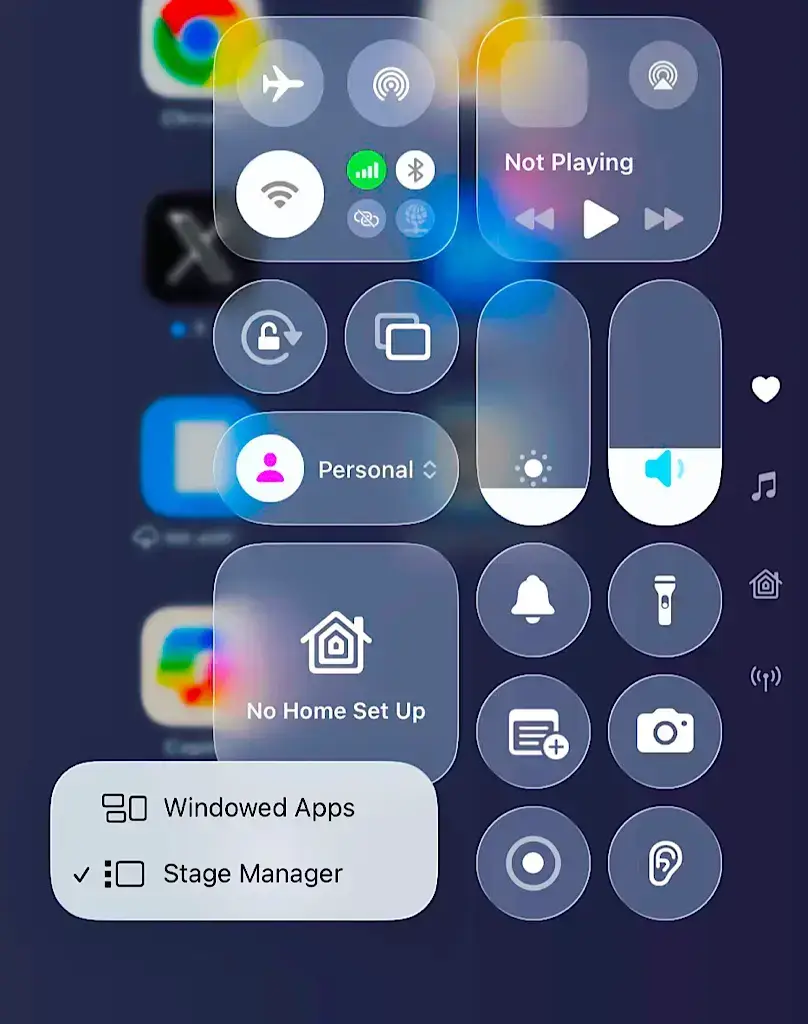
But when the Stage Manager freezes (due to memory or display bugs), your dock becomes unresponsive, and apps won’t open.
It’s a known bug that occasionally happens after long sessions or connecting an external display.
You’ll notice a small blue icon with two overlapping rectangles in your Control Center — that’s the Stage Manager toggle.
The Simple Solution: Turn Off Stage Manager
Here’s the step-by-step fix that works instantly:
- Swipe down from the top-right corner to open Control Center.
- Find the Stage Manager icon — two overlapping rectangles.
- Tap it once to disable Stage Manager (the icon turns gray).
- Return to the Home Screen — your dock and apps should now work normally.
Problem solved!
No resets, no restores, and no data loss required.
How to Prevent Future Freezes?
Once you’ve fixed it, here’s how to stop it from happening again:
- Avoid running too many apps in Stage Manager
- Limit to 2–3 active windows at a time.
- Disable “Recent Apps” in Dock
- Go to Settings → Home Screen & Multitasking → Dock
- Turn off “Show Suggested and Recent Apps.”
- Keep iPadOS Updated
- Apple continuously improves Stage Manager stability.
- Install minor updates even if they seem small.
- Restart Weekly
- Restart your iPad once a week to clear cached system memory.
- Avoid beta versions
- If you use beta iPadOS builds, expect temporary Stage Manager bugs.
Final Thoughts
If your iPad Touch works but apps don’t open, your device isn’t hacked or broken — it’s likely a Stage Manager freeze.
By turning off the Stage Manager icon (the two overlapping rectangles in Control Center), your iPad instantly returns to normal.
Remember: “Swipe down → Tap the double-screen icon → Dock fixed instantly.”
Simple. Safe. Permanent.
iPad Touch Not Working – FAQ
Q1: Why won’t my iPad open apps even though touch works?
It’s usually a system freeze caused by the Stage Manager feature. Disabling it from Control Center restores normal behavior.
Q2: Is my iPad hacked if I see a strange icon near the battery?
No. iPadOS icons represent system modes like Stage Manager or Assistive Access — they are not signs of hacking or spyware.
Q3: How do I fix a frozen dock on iPad Pro?
Swipe down from the top-right, tap the Stage Manager icon (two rectangles), and turn it off. Your dock will instantly start responding again.
Q4: What does the double-rectangle icon mean?
That’s Stage Manager — Apple’s multitasking mode. It can be toggled on/off from Control Center.
Q5: Will resetting delete my data?
No. Disabling Stage Manager or resetting your Home Screen layout doesn’t erase your apps or files.